
前些年一冲动之下我买了一台MacBook,由于在此之前从未接触过,这给我的工作带来了极大的不便。对于我来说这个系统是极其陌生的,只知道其是基于Unix衍生而来的图形化操作系统,由苹果公司自行开发。作为程序员,买来的初衷是作为开发用的,于是一系列的探索开始了。
计算机是如此的神奇,我知这mac是带有shell工具的,程序员若不会一些shell命令真是说不过去呢。那么现在开始打造自己的开发环境吧
如何打开mac中的终端(terminal)
按组合键 command键 + 空格键 打开搜索框搜索终端 或 terminal,搜到后然后打开
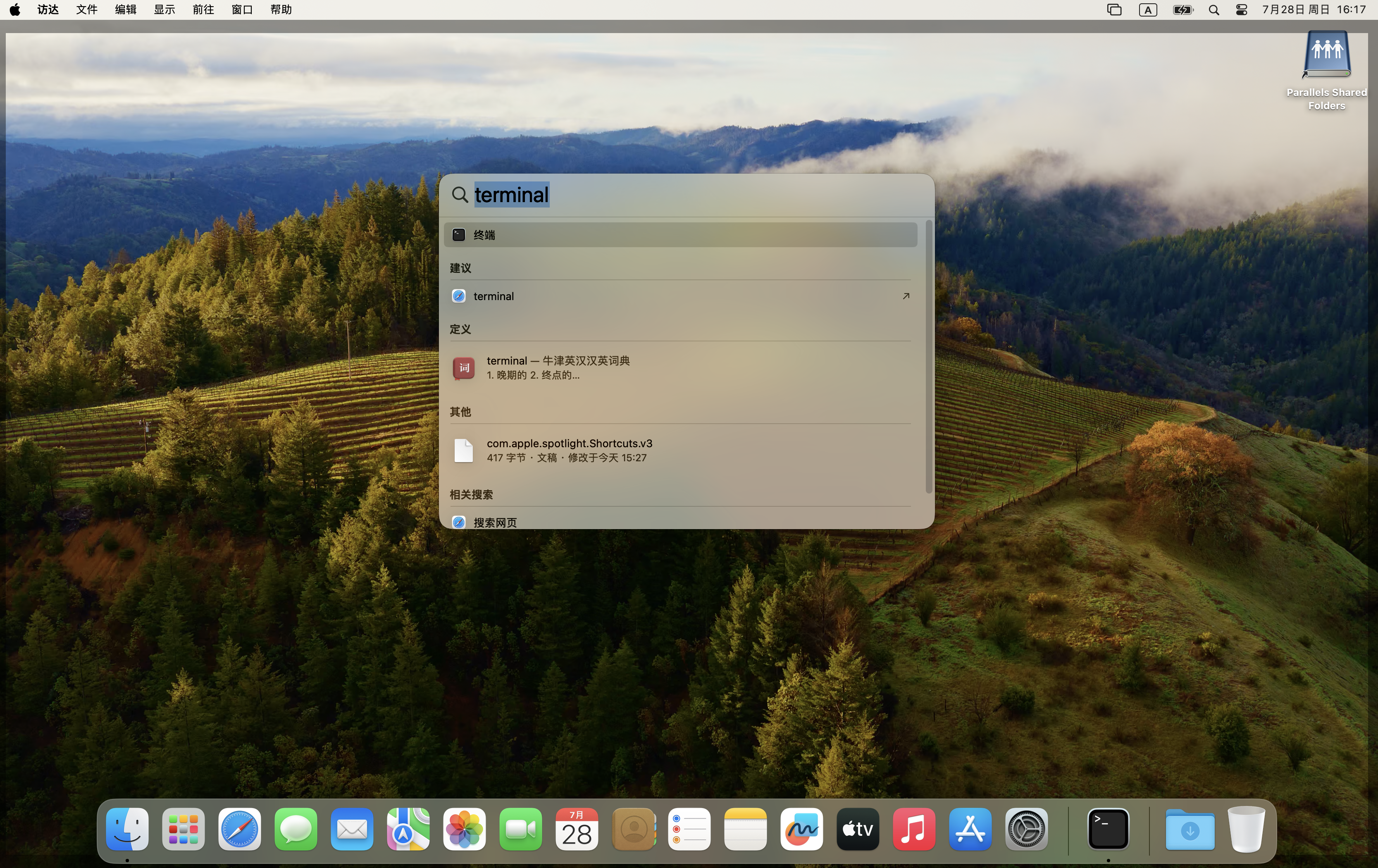
打开【终端】后,窗口如下。
Last login: Sun Jul 28 15:26:47 on ttys000
The default interactive shell is now zsh.
To update your account to use zsh, please run `chsh -s /bin/zsh`.
For more details, please visit https://support.apple.com/kb/HT208050.
hi@macos-14 ~ %
打开终端后若有如上提示,建议把终端的命令行解释器更改为zsh。如何更改?按照提示执行即可。
在更改之前,如何查看当前的命令行解释器是什么呢?命令如下:
hi@macos-14 ~ % echo $0
-bash
如上,由终端输出结果可知,当前的命令行解释器为:bash。zsh命令行解释器在某些方面是优于bash的,那么接下来我们就根据上面的提示把终端的命令行解释器更改为:zsh吧。
hi@macos-14 ~ % chsh -s /bin/zsh
Changing shell for hi.
Password for hi:
chsh: no changes made
hi@macos-14 ~ % sudo chsh -s /bin/zsh
Password:
Changing shell for root.
hi@macos-14 ~ % 果然事情没有那么简单呢。在执行命令chsh -s /bin/zsh更改命令行解释器时,别忘了在前面加sudo。若见如上的终端输出结果,应该是修改完成了;那么让我们来验证下吧。
hi@macos-14 ~ % echo $0
-zsh
hi@macos-14 ~ %
开发人员在 Mac 上开发软件之前需要安装 Xcode 命令行工具。
我查找资料得知,在 Mac 上安装 Xcode 命令行工具由三种选择:
安装完整的 Xcode 包
当被一个命令触发时安装 Xcode 命令行工具
安装 Xcode 命令行工具作为 Homebrew 安装的一部分
从我的经验以及网友提供的说法来看,若不是为苹果设备开发软件,是不建议安装完整版本的Xcode应用程序的(因为所占存储空间需要十几GB,完全没有必要)。比较合理的选择是仅安装Xcode 命令行工具;这是一个较小的软件包,为软件开发人员提供了在命令行(也就是在终端应用程序)上运行的工具;Xcode 命令行工具包其体积较小,在磁盘上只需要 1.2GB 的空间。
如何在终端中年安装 Xcode 命令行工具?
苹果公司已经使安装 Xcode 命令行工具变得很容易,因为某些命令会提示你开始安装。
下面是一些命令的例子,它们会触发安装 Xcode 命令行工具的提示:
clang- 一个编译器,将源代码变成可执行程序gcc- GNU 编译器git- 即存即用的版本控制系统
在终端中运行任何这些命令都会出现安装 Xcode 命令行工具的提示。
hi@macos-14 ~ % git
xcode-select: note: No developer tools were found, requesting install.
If developer tools are located at a non-default location on disk, use `sudo xcode-select --switch path/to/Xcode.app` to specify the Xcode that you wish to use for command line developer tools, and cancel the installation dialog.
See `man xcode-select` for more details.
hi@macos-14 ~ %
你也可以在终端中输入命令 xcode-select --install 来开始安装过程。你会看到一个面板,要求你安装 Xcode 命令行工具(如下图)。
xcode-select --installxcode-select: note: install requested for command line developer tools
hi@macos-14 ~ % 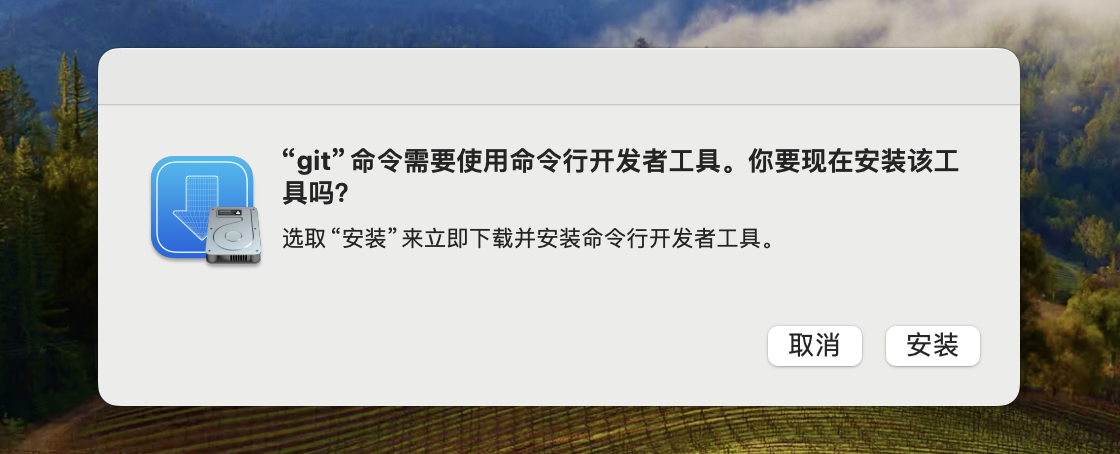
在弹出如上提示窗口后,点击按钮【安装】,按照提示安装即可。
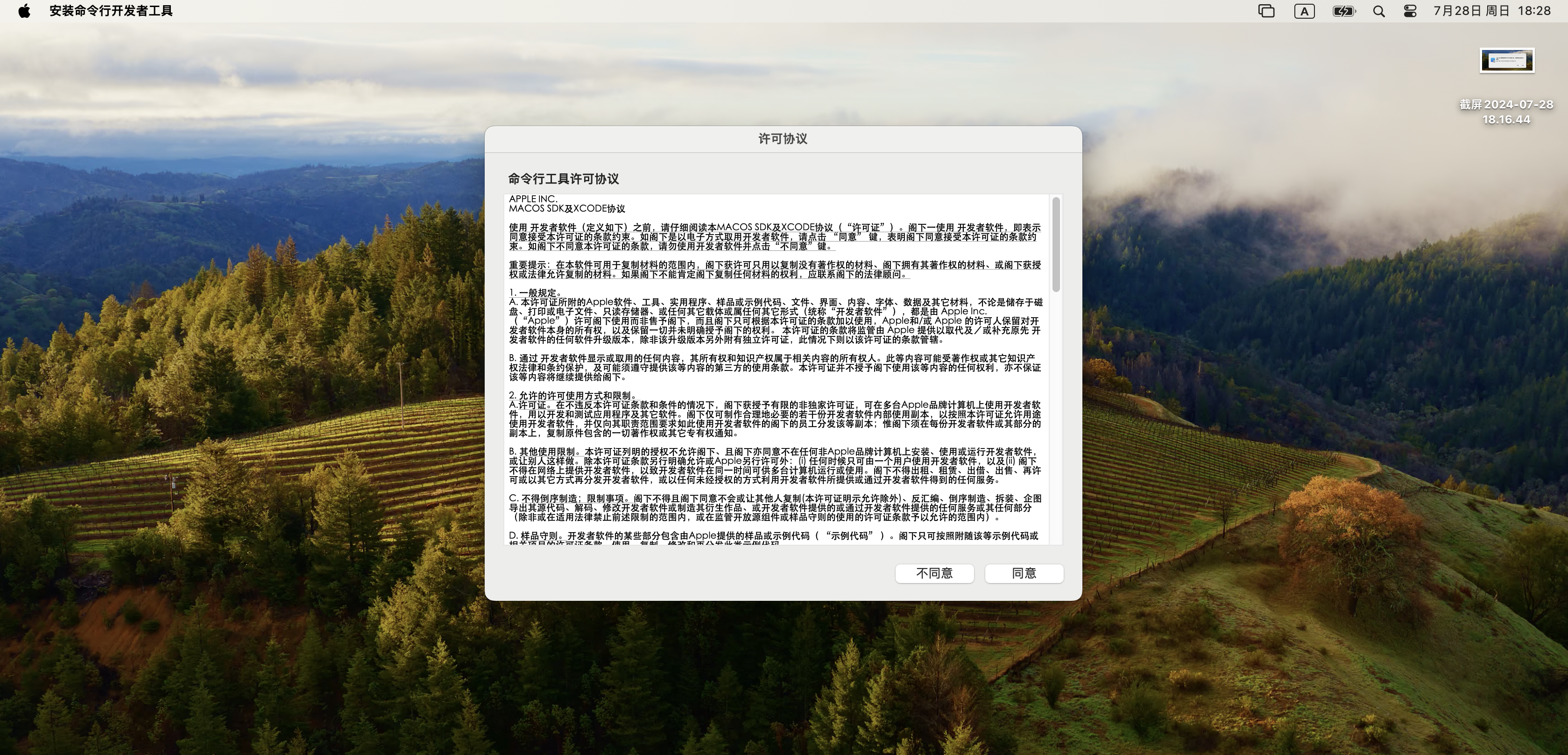
在许可协议页面,点击按钮【同意】,开始下载和安装过程。
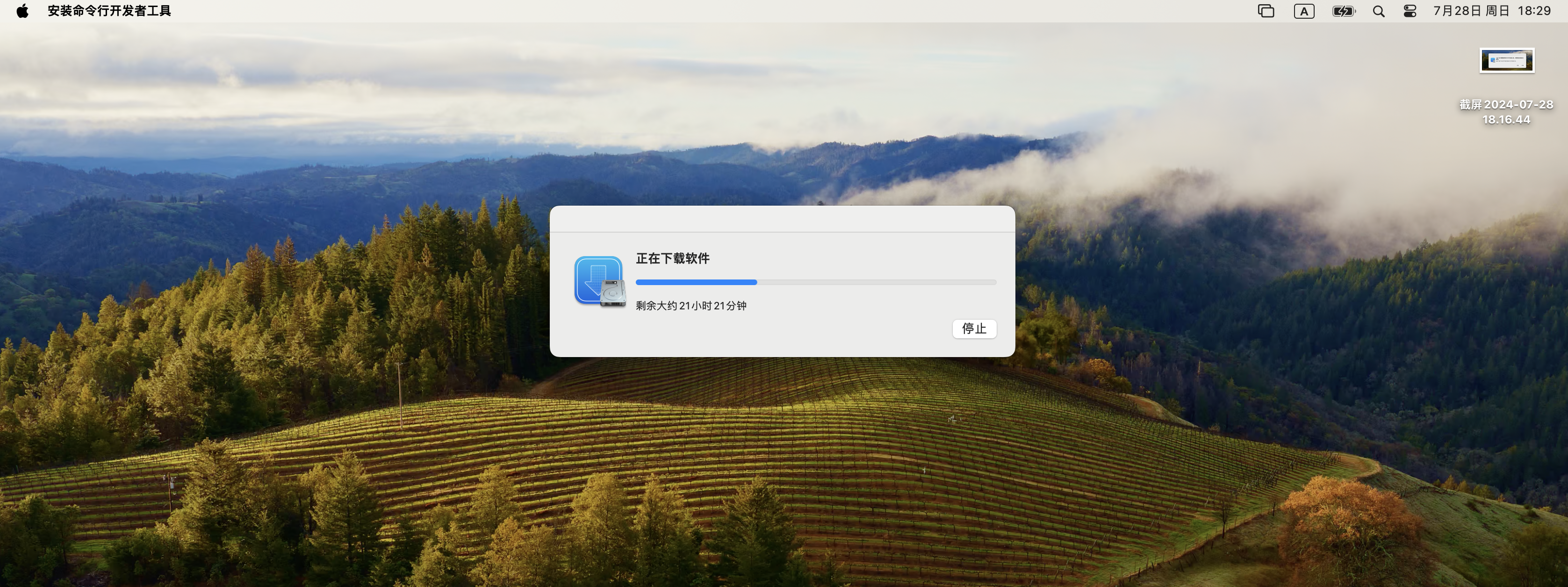
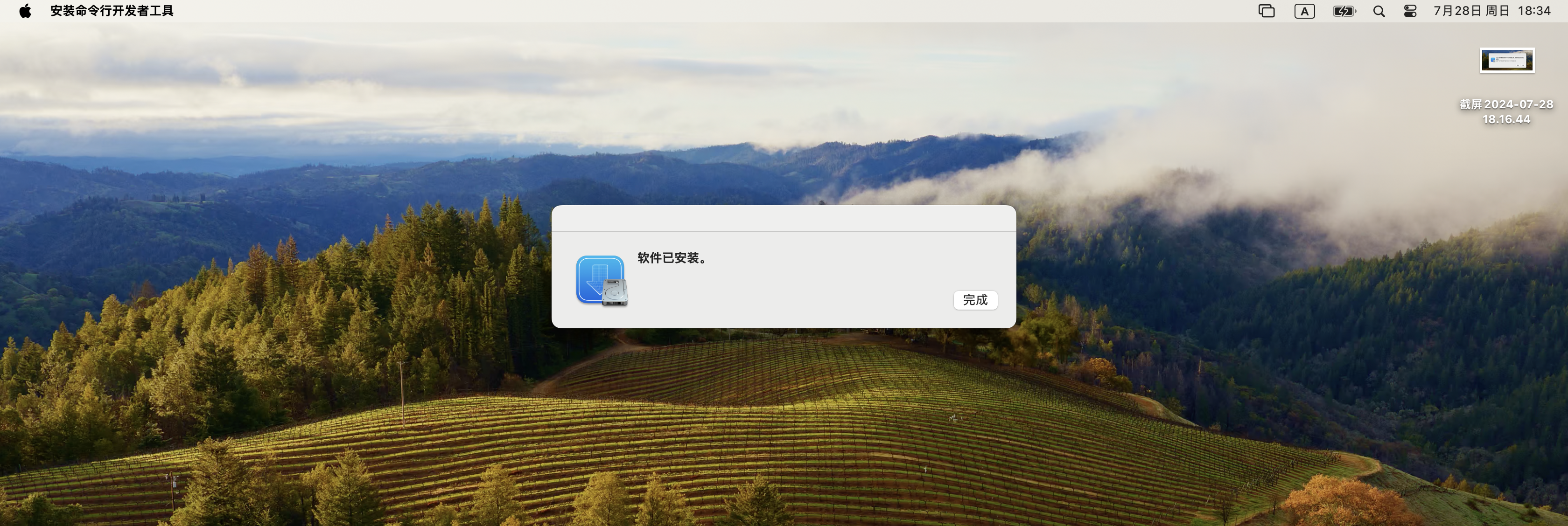
下载和安装完毕后,你会看到一个确认信息。
验证你已经成功地安装了 Xcode 命令行开发者工具:
xcode-select -p当你看到如下信息时,表示安装成功了。
/Library/Developer/CommandLineTools也可以在终端中输入git命令测试下:
hi@macos-14 ~ % git
usage: git [-v | --version] [-h | --help] [-C <path>] [-c <name>=<value>]
           [--exec-path[=<path>]] [--html-path] [--man-path] [--info-path]
           [-p | --paginate | -P | --no-pager] [--no-replace-objects] [--bare]
           [--git-dir=<path>] [--work-tree=<path>] [--namespace=<name>]
           [--super-prefix=<path>] [--config-env=<name>=<envvar>]
           <command> [<args>]

These are common Git commands used in various situations:

start a working area (see also: git help tutorial)
   clone     Clone a repository into a new directory
   init      Create an empty Git repository or reinitialize an existing one

work on the current change (see also: git help everyday)
   add       Add file contents to the index
   mv        Move or rename a file, a directory, or a symlink
   restore   Restore working tree files
   rm        Remove files from the working tree and from the index

examine the history and state (see also: git help revisions)
   bisect    Use binary search to find the commit that introduced a bug
   diff      Show changes between commits, commit and working tree, etc
   grep      Print lines matching a pattern
   log       Show commit logs
   show      Show various types of objects
   status    Show the working tree status

grow, mark and tweak your common history
   branch    List, create, or delete branches
   commit    Record changes to the repository
   merge     Join two or more development histories together
   rebase    Reapply commits on top of another base tip
   reset     Reset current HEAD to the specified state
   switch    Switch branches
   tag       Create, list, delete or verify a tag object signed with GPG

collaborate (see also: git help workflows)
   fetch     Download objects and refs from another repository
   pull      Fetch from and integrate with another repository or a local branch
   push      Update remote refs along with associated objects

'git help -a' and 'git help -g' list available subcommands and some
concept guides. See 'git help <command>' or 'git help <concept>'
to read about a specific subcommand or concept.
See 'git help git' for an overview of the system.
hi@macos-14 ~ %